




Stop Designing Like It’s 2018: How Canva’s AI Stack Built My Content Machine in Minutes
In 2022, I was stuck.
Hours disappeared tweaking fonts, fixing layouts, and obsessing over “perfect” social posts. What should have been creative work felt like manual labor.
Fast forward to today: I use Canva’s AI-powered Magic Studio, and everything changed.
What once took 3 hours now takes 10 minutes. No exaggeration.
My competitors? They’re building entire content machines – generating posts, carousels, blogs, videos, and more – while others still fight with blank canvases.
The gap is growing dangerously huge. If you’re serious about content creation in 2026, it’s time to stop ignoring AI and start using it as your unfair advantage.
Here’s exactly how Canva’s AI tools transformed my workflow – and how they can do the same for you.
The Old Way vs. The New Way
Most creators still do this:
- Start every project from a blank canvas
- Over-design every little detail
- Waste time on minor tweaks
- Ignore AI features completely
- Burn out chasing perfection
Smart creators do this instead:
- Use AI first, edit later
- Repurpose one idea into 5+ formats (carousel → blog → video → email → story)
- Prioritize speed over perfection
- Build repeatable systems
- Ship daily without burnout
The difference? Friction removal.
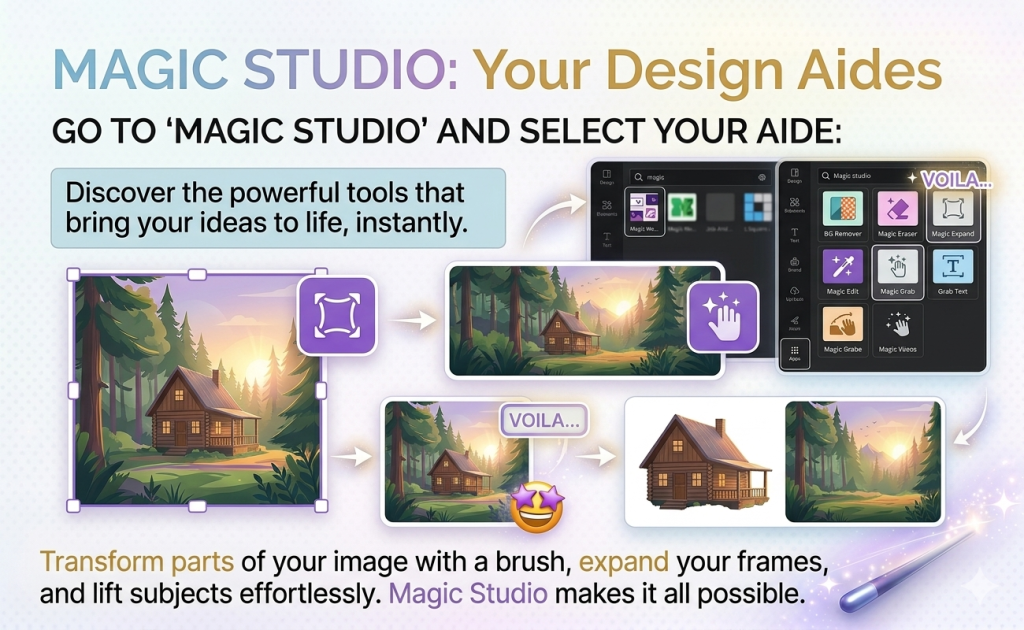
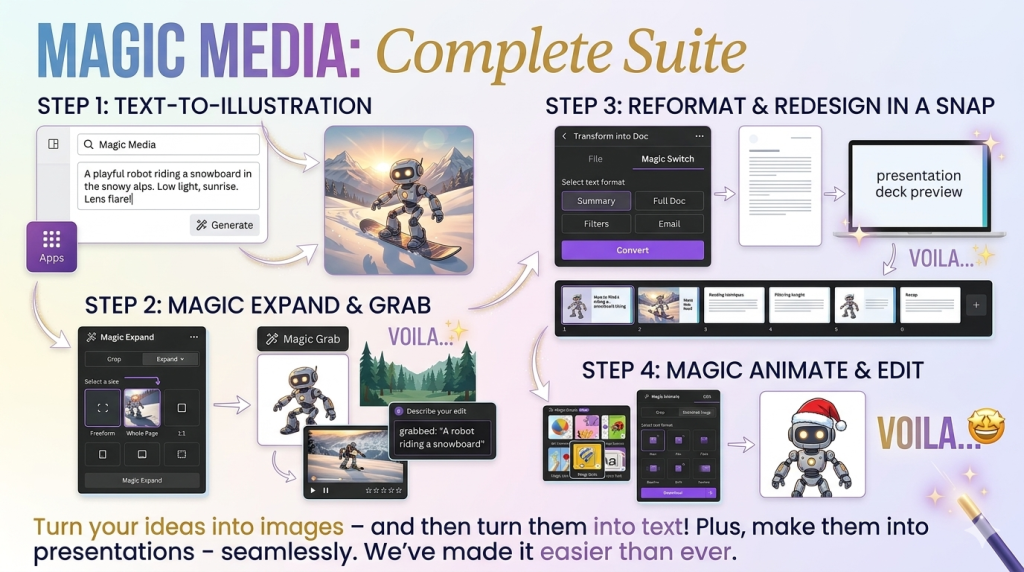
Canva’s Magic Studio tools eliminate the tedious parts of design, so you can focus on strategy and ideas – the stuff that actually moves the needle.
Canva’s AI Stack: The Game-Changing Tools
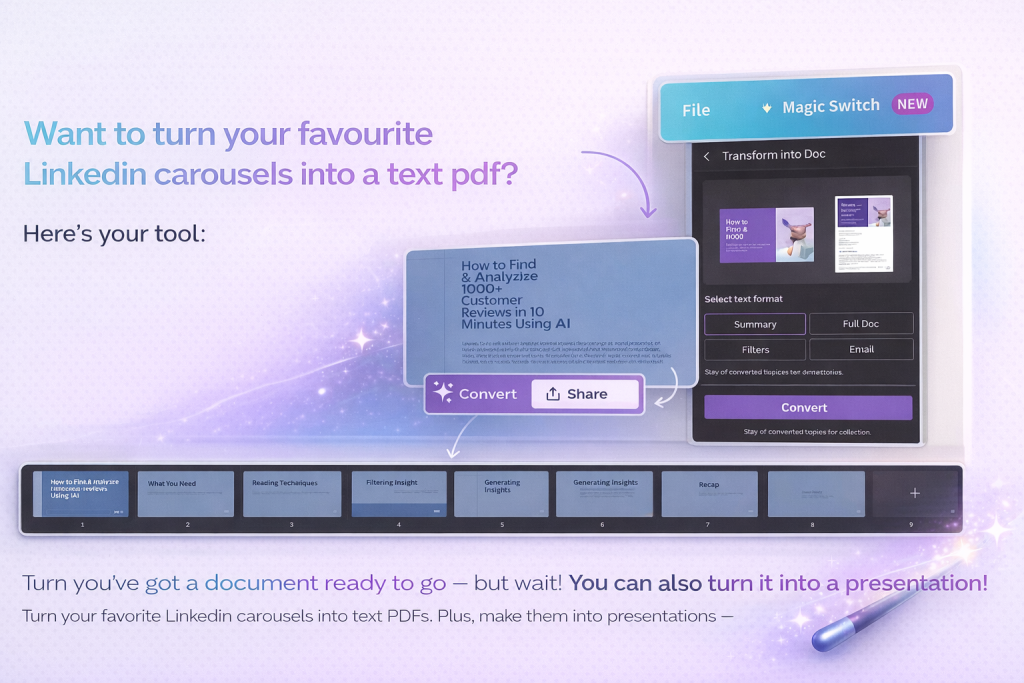
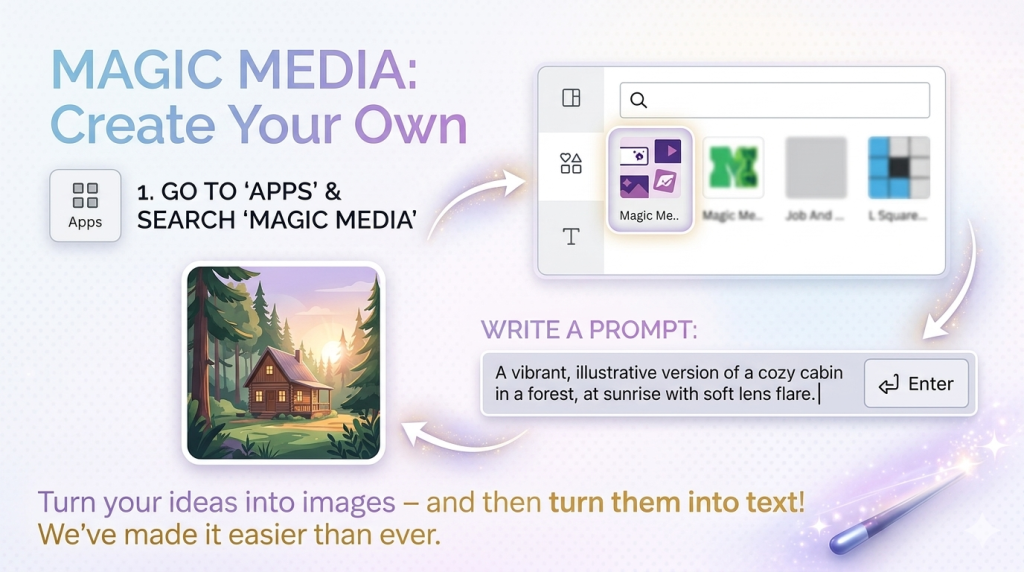
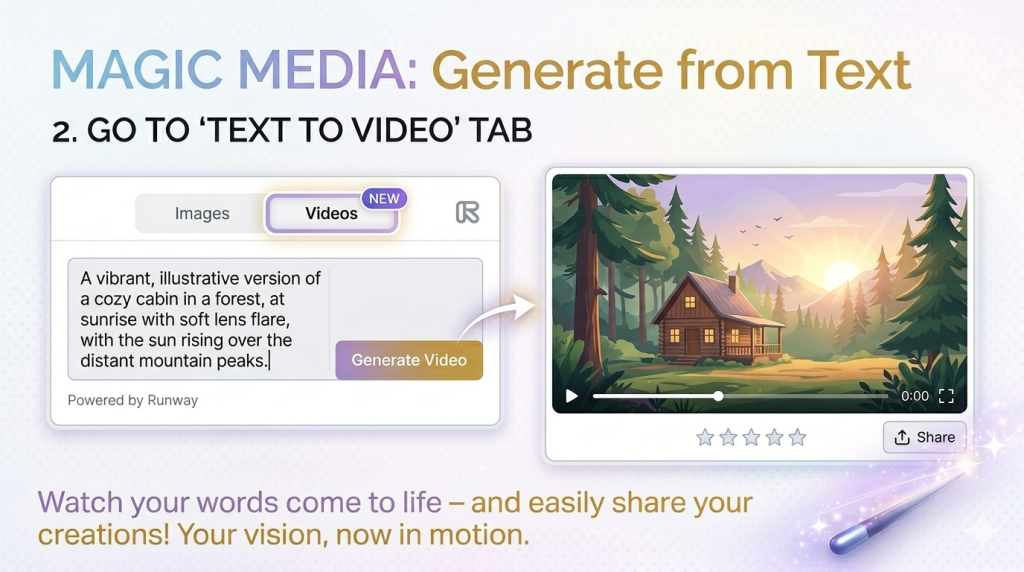
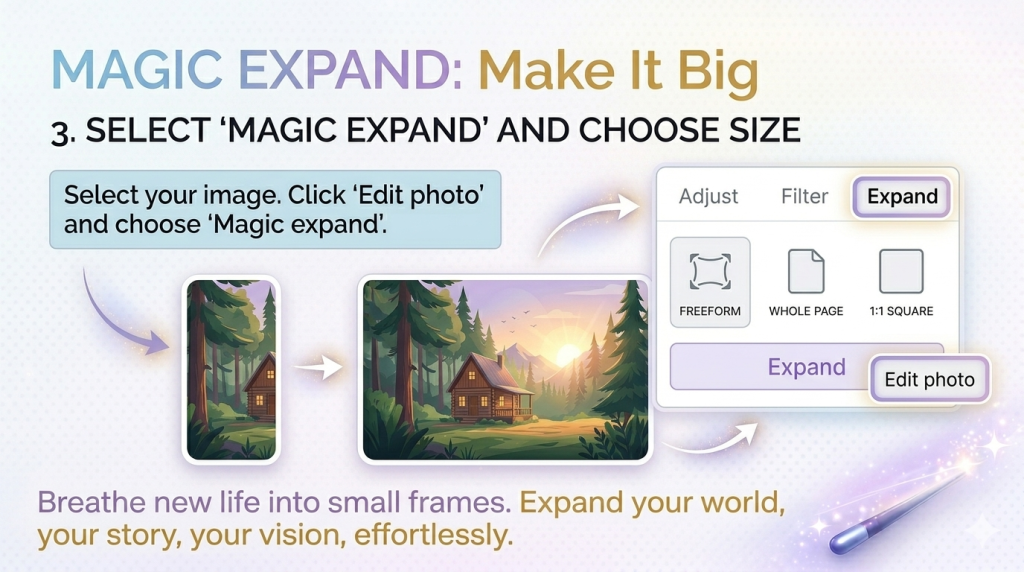
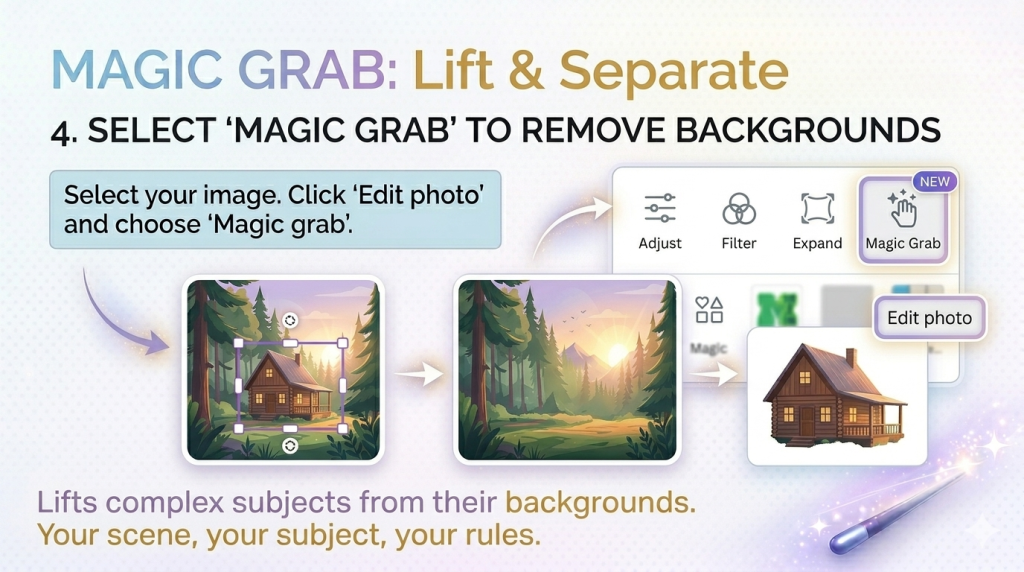
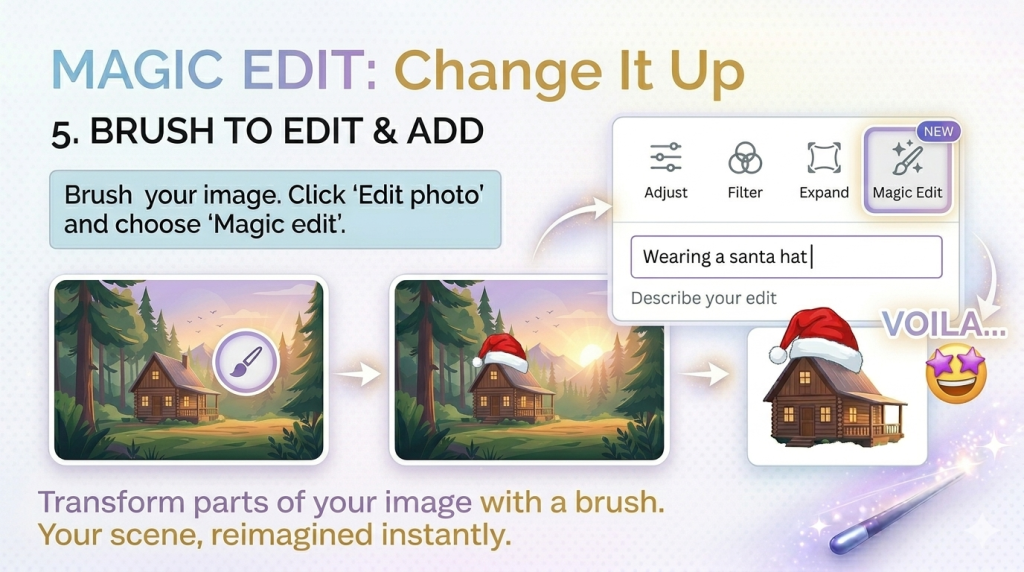
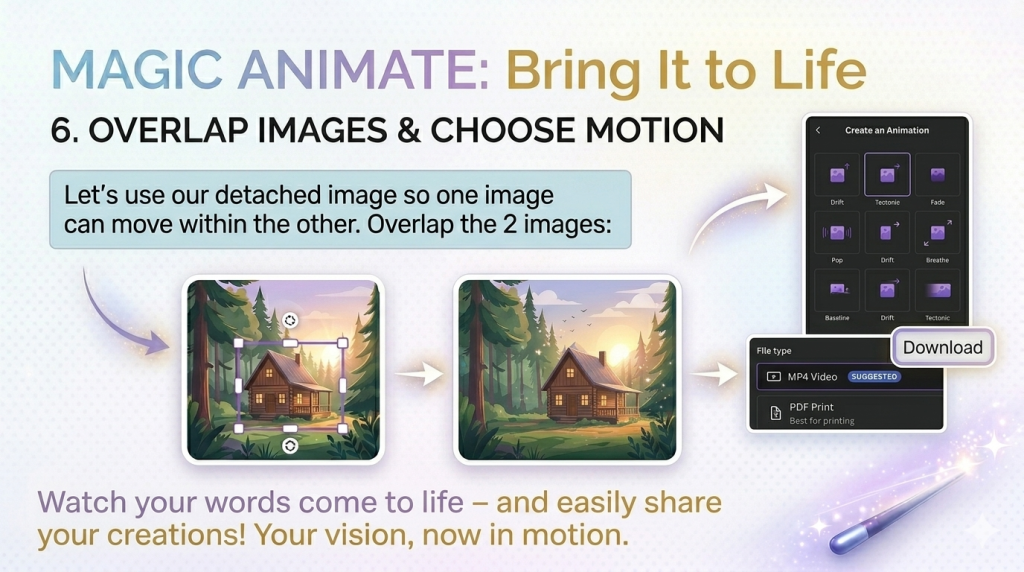
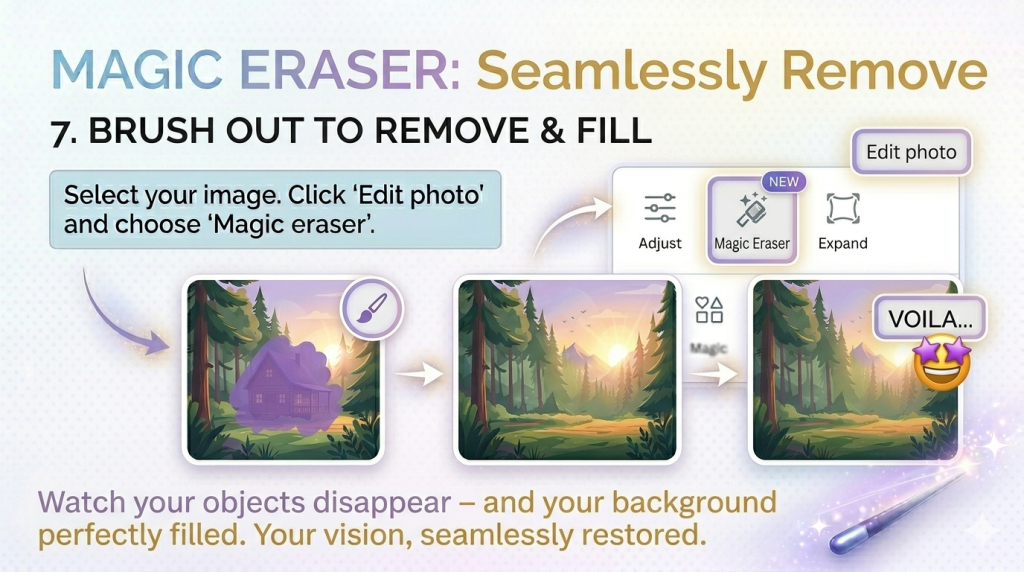
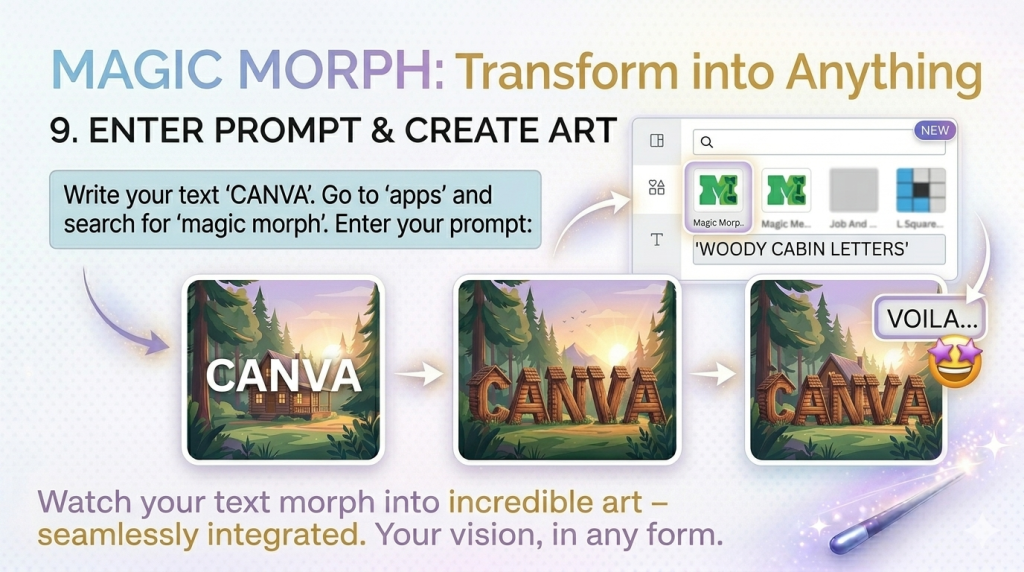
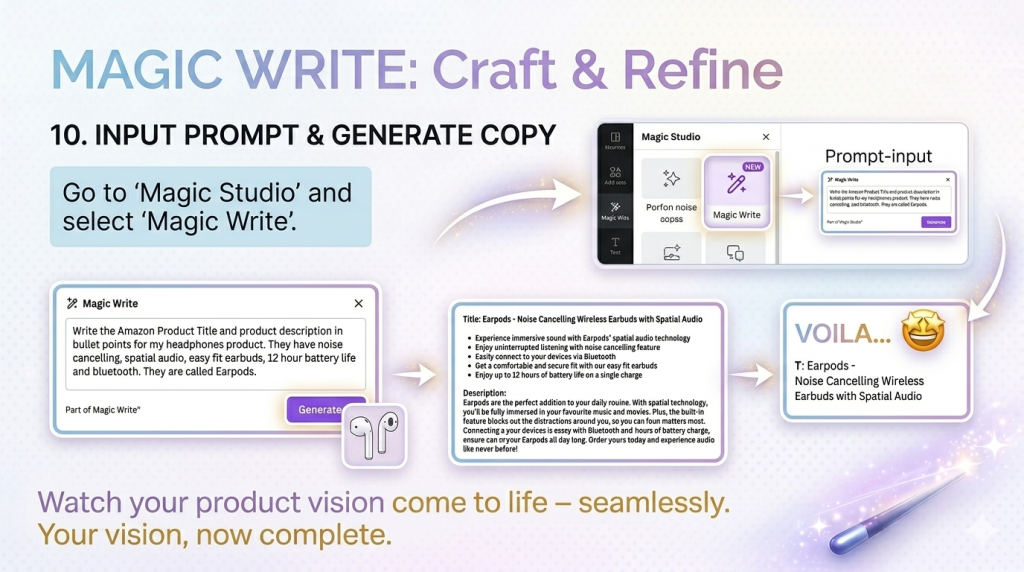
Here’s how each tool works and why it’s powerful:
Real Results: From Hours to Minutes
By leading with these tools, I now:
- Generate a week’s worth of social content in one focused session
- Repurpose a single carousel into a full blog post, video script, and email newsletter
- Ship daily without the creative exhaustion
The key mindset shift: AI first, human polish second.
Don’t aim for perfection on the first pass. Let the AI handle 80% of the heavy lifting, then add your unique voice and refinements.
Build Your Own Content System
If you’re ready to close the gap with your competitors, here’s your action plan:
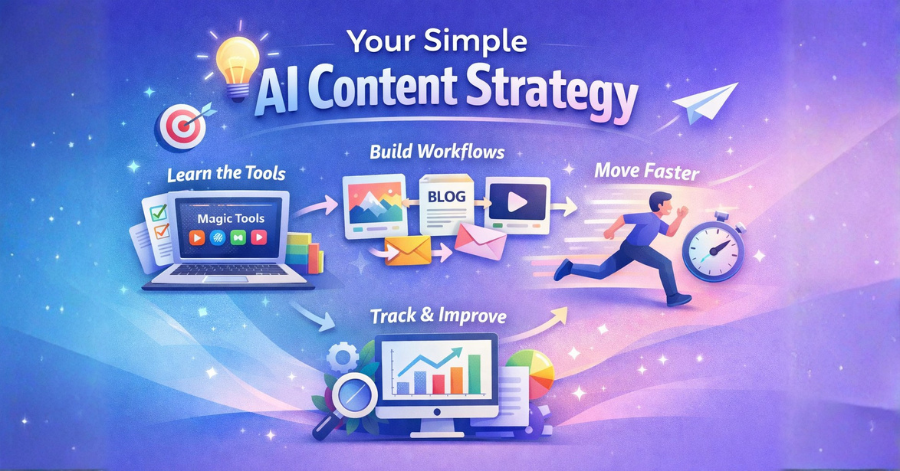
Learn the tools – Spend one afternoon experimenting with each Magic feature. Canva Pro unlocks the full power (most advanced AI tools are Pro-only).
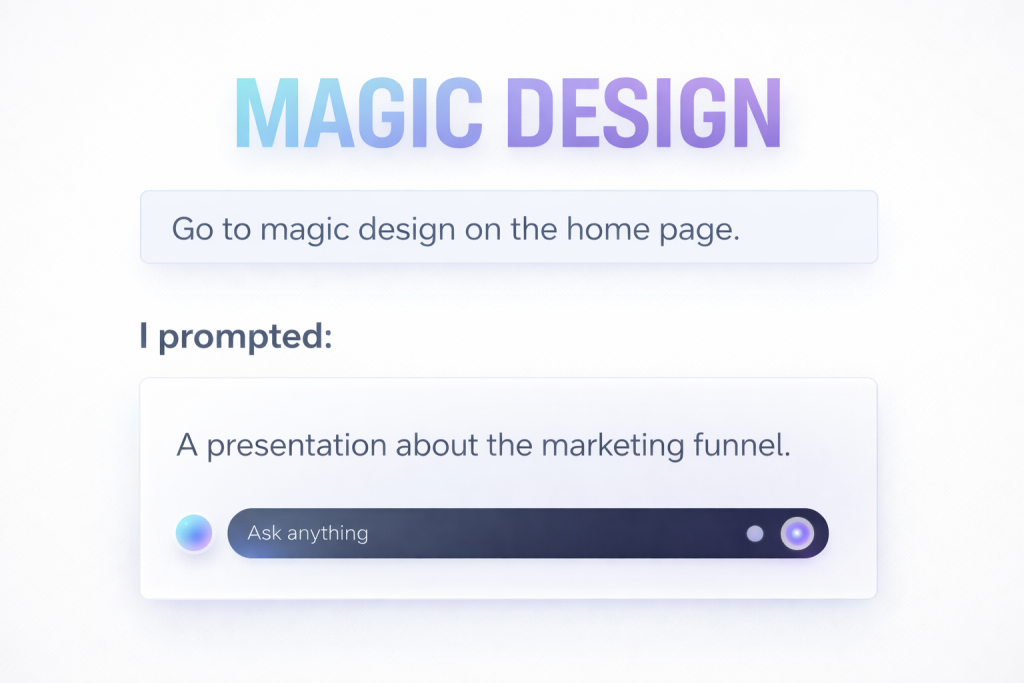
Build workflows – Idea → Magic Design (carousel) → Magic Switch (blog) → Magic Animate (video) → Schedule everywhere.
Move faster – Set a rule: ship good content daily instead of perfect content weekly.
Track what works – Use analytics to identify which repurposed formats perform best and double down on them.
The creator who removes the most friction wins in 2026.
Final Truth
Canva’s AI stack isn’t just about prettier designs. It’s about momentum.
Stop fighting the tools of 2018. Embrace the AI-powered workflow that lets you create more, stress less, and actually enjoy the process.
Your audience doesn’t care how long it took – they care about consistent, valuable content.
Go through the carousel that inspired this post (or your own visuals above) and start experimenting today.
Which Magic tool are you trying first? Drop it in the comments – I’d love to hear your results.
Looking for expert design support? Visit MindBees Graphics Design →